


Tutorial berikut akan mengajarkan setiap Ubuntu 10.10 dan 10.04 pengguna Ubuntu LTS cara menginstal source LibreOffice suite kantor terbuka baru dan mengganti OpenOffice.org suite kantor lama dari Oracle.
Minggu lalu telah diumumkan bahwa para pengembang Ubuntu mulai transisi dari paket OpenOffice.org ketinggalan jaman dengan yang LibreOffice baru, dalam sistem 11.04 mendatang Ubuntu (Natty Narwhal) operasi, akan dirilis pada akhir April tahun ini.
Namun, paket LibreOffice juga tersedia untuk Ubuntu 10.10 (Maverick Meerkat) dan 10,04 Ubuntu LTS (Lucid Lynx) pengguna. Untuk menghapus OpenOffice.org dari sistem anda dan menginstal LibreOffice, ikuti langkah-demi-langkah berikutnya (dengan screenshot) tutorial.
Minggu lalu telah diumumkan bahwa para pengembang Ubuntu mulai transisi dari paket OpenOffice.org ketinggalan jaman dengan yang LibreOffice baru, dalam sistem 11.04 mendatang Ubuntu (Natty Narwhal) operasi, akan dirilis pada akhir April tahun ini.
Namun, paket LibreOffice juga tersedia untuk Ubuntu 10.10 (Maverick Meerkat) dan 10,04 Ubuntu LTS (Lucid Lynx) pengguna. Untuk menghapus OpenOffice.org dari sistem anda dan menginstal LibreOffice, ikuti langkah-demi-langkah berikutnya (dengan screenshot) tutorial.
Step 1 - Remove OpenOffice.org
Hit the ALT+F2 key combination on your keyboard, check the "Run in terminal" option and paste the following command in the "Run Application" dialog:
sudo apt-get purge "openoffice*.*"
Hit the ALT+F2 key combination on your keyboard, check the "Run in terminal" option and paste the following command in the "Run Application" dialog:
sudo apt-get purge "openoffice*.*"
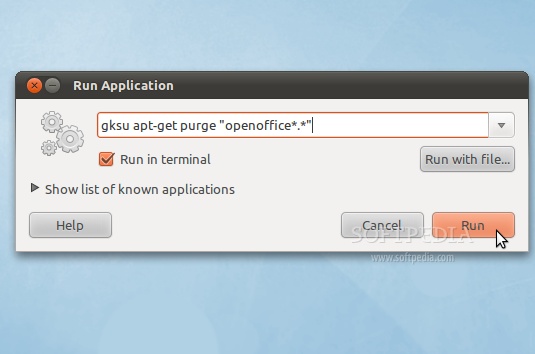 |
A terminal window will appear. Enter your password when asked and hit the OK button.
When you will be asked if you want to remove the OpenOffice.org package, type Y and hit Enter. After this, the OpenOffice.org packages will be removed and the terminal window will disappear...
 |
Step 2 - Add the LibreOffice repository
No matter what operating system you are running (Ubuntu 10.10 or Ubuntu 10.04), hit the ALT+F2 key combination on your keyboard, check the "Run in terminal" option and paste the following command in the "Run Application" dialog:
gksu add-apt-repository ppa:libreoffice/ppa
 |
Enter your password when asked and hit the OK button. A terminal window will appear for a few seconds, and it will automatically close. Hit the ALT+F2 key combination again, check the "Run in terminal" option and paste the following command in the "Run Application" dialog:
gksu apt-get update
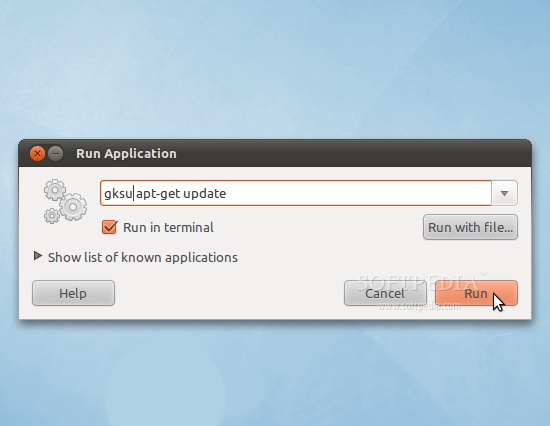 |
Enter your password when asked and hit the OK button. A terminal window will appear for a few seconds, and it will automatically close.
Step 3 - Install LibreOffice
Hit the ALT+F2 key combination on your keyboard, check the "Run in terminal" option and paste the following command in the "Run Application" dialog:
sudo apt-get install libreoffice libreoffice-gnome language-support-en
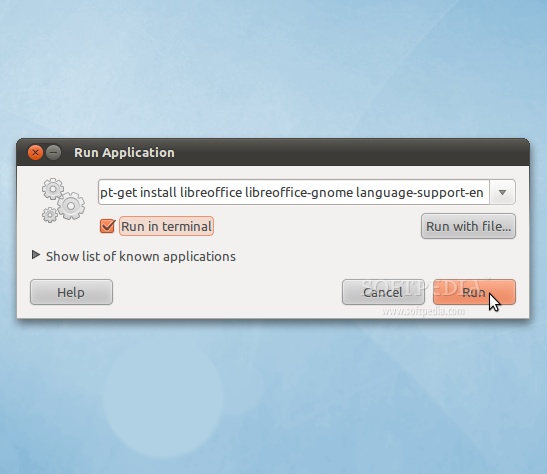 |
A terminal window will appear. Enter your password when asked.
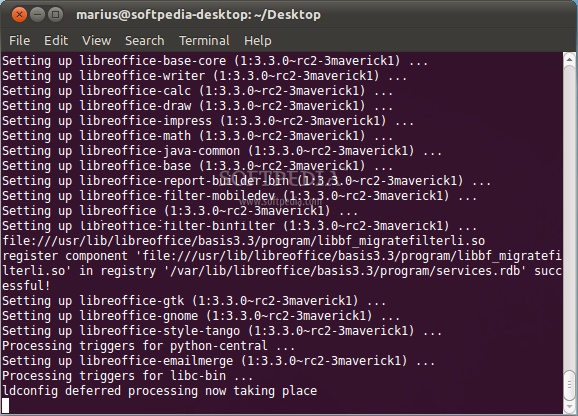
When you will be asked if you want to install the LibreOffice packages, type Y and hit Enter. Wait for the installation to finish...
 |
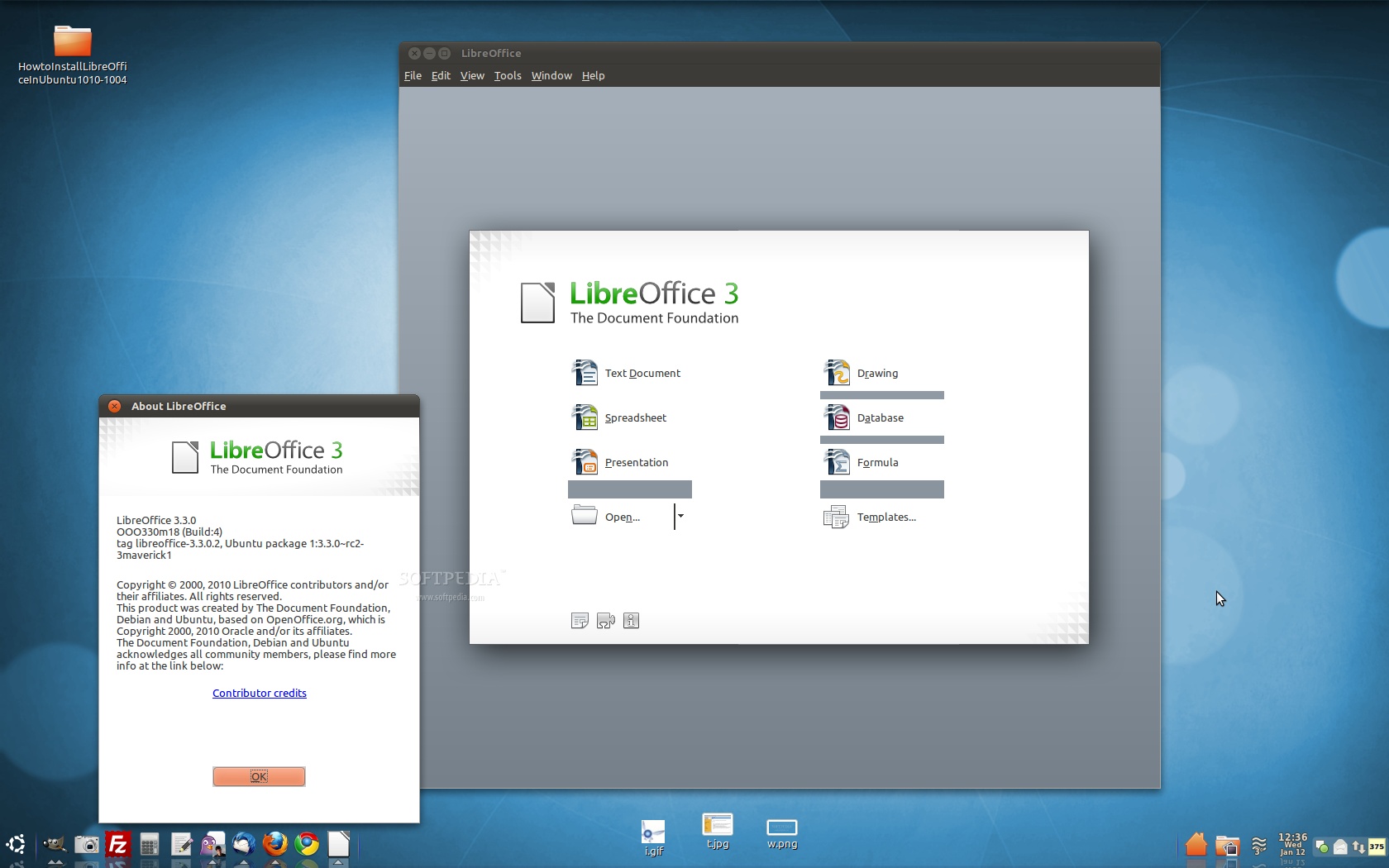
That's it! LibreOffice is now completely installed in your Ubuntu machine.
 |


